Playing custom message on Allstar node
Some background
I wanted to play a custom message on my Allstar Node, not just the pre recorded files. I found an easy way to do it.
Make it.
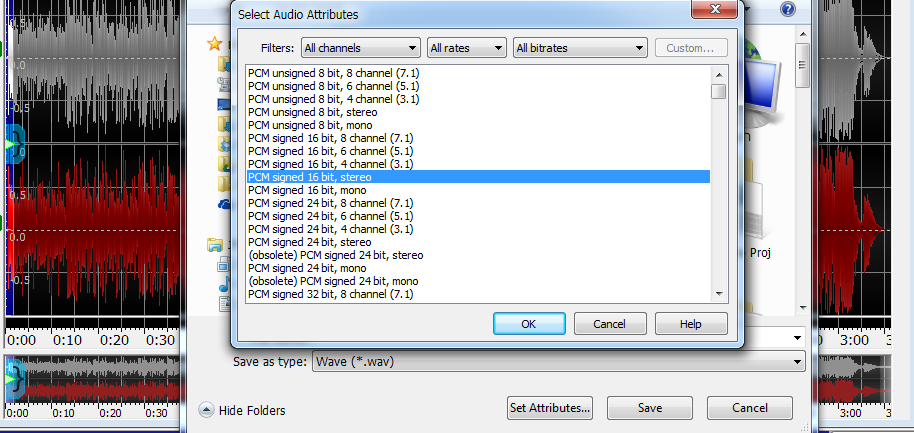
Find your audio file and open it in your audio editor, I’m using GoldWave.
Save it.
Save your file in WAV format and choose “Set attributes” to save as PCM signed 16 bit, stereo.
Upload it.
Open WinSCP or any other software and connect to your Raspberry Pi. Upload your WAV file to /var/lib/asterisk/sounds
Convert it.
We will use SOX for converting. Open PuTTY and connect to the Raspberry Pi, Change directory to “/var/lib/asterisk/sounds” and enter this command:
sox YOURFILENAME.wav -r 8000 -c 1 YOURFILENAME.gsm
Now we should have a new file with GSM extension.
All we have to do now is to restart Asterisk by calling astres.sh script.
Now we can test it on Asterisk by entering to the CLI:
asterisk -r
rpt playback 12345 YOURFILENAME
Replace 12345 with your node number.
Please note that you don’t need to add extension after your file’s name.If you want to play it via CRON on scheduled time or just play it outside of the CLI just use:
asterisk -r -x "rpt playback 12345 YOURFILENAME"
73!