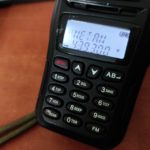
Sending DTMF With Your Smartphone
Quick Tutorial
Ever found yourself in a situation that you wished for DTMF microphone?
I did, many times.
My Yaesu FT857 came with simple microphone and doesn’t have DTMF capabilities at all.
Sometimes I need to send a command to my Allstar node so I found an easy solution.
Using an app for Android called “Simply DTMF Tone Generator” it is possible to record and play DTMF commands easily.
(iPhone users, if you have an app that do the same please share it in the comments)
Step 1
Install and open the app.
As you can see, I already have one macro to connect to our Allstar hub.

Step 2
Go to the DTMF tab.

Step 3
Tap on the Record button and type in the title, then set the required sequence and save.
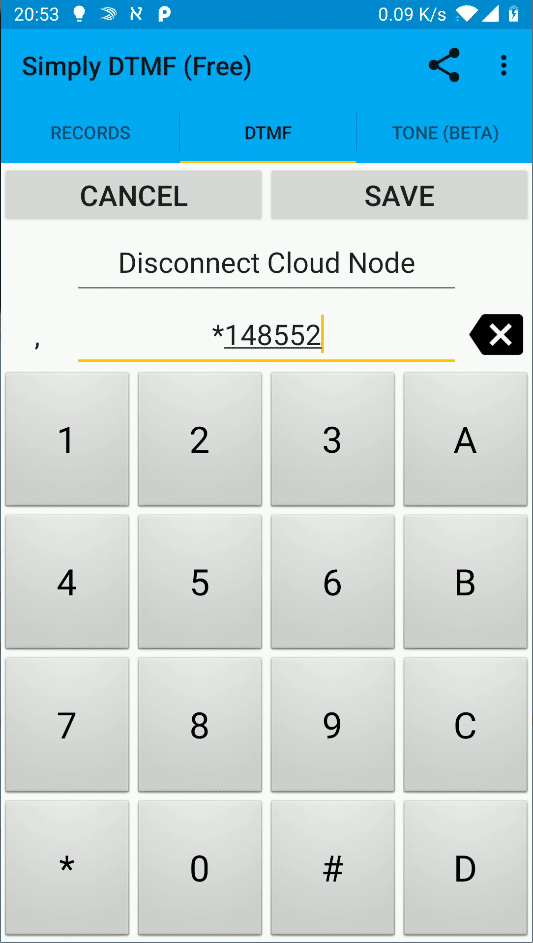
Step 4
Go to the settings and change it to meet the values in the picture.
Those are the speed and pause settings.
If it’s too fast (by default), Allstar won’t acknowledge the tones.
(you can change the values as you want, this is what works for me)
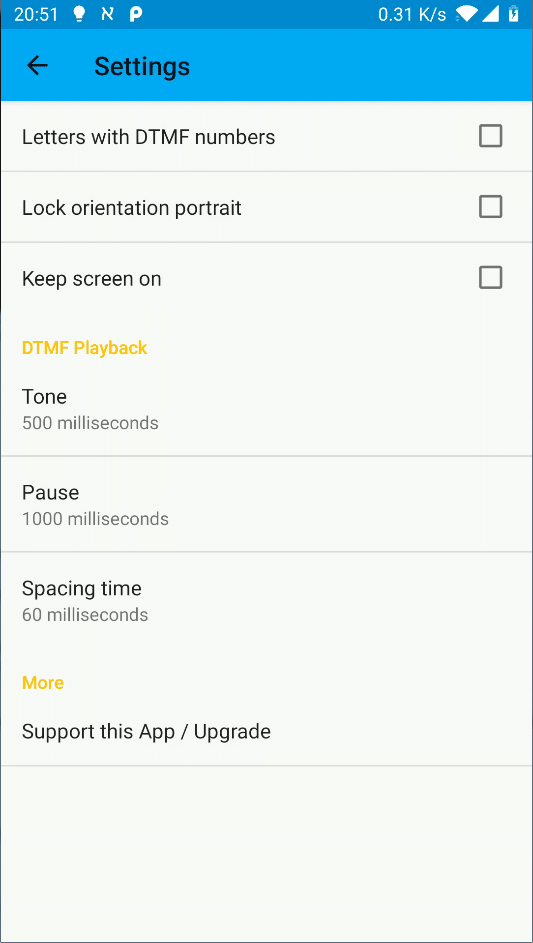
Step 5
Now all you need to do is to go back to Records tab hold your PTT on the radio and play the sequence by tapping on the record you want.
Sometimes you’ll need to do it more than once until Allstar acknowledges all the tones.
73!