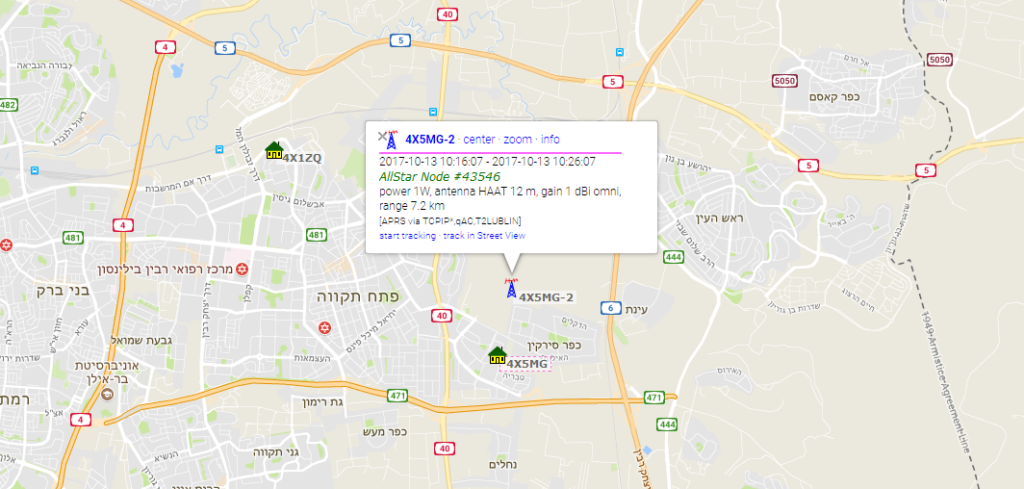
Showing Allstar node on the APRS map
Hi everyone,
I was very busy in the last year so I couldn’t find time for Ham radio.
I hope to get back this year with more projects.
I recently updated my node to the newest version of the Allstar system and I wanted to show my node on the APRS map.
It was easy to find and easy to do.
Let’s begin
The first step is to edit the gps.conf file (use lowercase).
I didn’t find it in my allstar config files so I created it.
Next, change the highlighted parameters to match yours:
; Configuration for app_gps
;
[general]
call = 4X5MG-2 ; callsign (including SSID) for APRS purposes
password = 12345; Password for APRS-IS server for above callsign
comment = AllStar Node #43546; Text to be displayed associated with this station
server = rotate.aprs2.net ; APRS-IS server to report information to
port = 14580 ; port on server to send data
interval = 600 ; Beacon interval in seconds
icon = r ; A CAR (default) Icon do be displayed for station on APRS display (see below)
;comport = /dev/ttyS0 ; Serial port for GPS receiver (specify this only if using GPS receiver)
;baudrate = 4800 ; Baud rate for GPS receiver (specify this only if using GPS receiver)
;debug = y ; set this for debug output
freq=439.300 ; Display Frequency of station
tone=91.5 ; CTCSS tone of station (0.0 for none)
lat=31.058 ; Fixed (default) latitude in decimal degrees
lon=31.983 ; Fixed (default) longitude in decimal degrees
elev=10 ; Elevation of Antenna in Meters (*NOT* HAAT)
power=1 ; Power level (see below)
height=2 ; Antenna Height in HAAT (see below)
gain=1 ; Antenna Gain (see below)
dir=0 ; Antenna Direction (see below)
Don’t forget to comment out “comport” and “baudrate”.
You can translate google maps coordinates to decimal here and find your elevation here.
Now we just need to edit one last file called “modules.conf” and find “noload=app_gps.so” add “;” in the beginning of the line and save.
Now restart Asterisk by running “astres.sh” and you’re done!